Creating a Minecraft Server for Offline and Online Play Using Docker
Requirements
- ✅ A good internet connection for initial setup
- ✅ Download Docker Desktop App
- ✅ Minecraft Bedrock
Step by Step Guide to creating a LAN server you can play on any of your devices
- On any laptop connected to the same network as your minecraft device, create a folder
minecraft-server - Create a file
docker-compose.yaml - Copy and paste the following code into the
docker-compose.yamlfile
services:
  minecraft:
    image: itzg/minecraft-bedrock-server
    container_name: minecraft-bedrock
    environment:
      EULA: "TRUE"
      SERVER_NAME: "My Server"
      GAMEMODE: survival
      DIFFICULTY: normal
      ALLOW_CHEATS: "false"
      LEVEL_SEED: "7085862198572591177"
      ALLOW_LIST: "false"
    ports:
      - "19132:19132/udp"
    volumes:
      - ./minecraft-data:/data
    restart: unless-stopped
You can change the server name and other settings as needed.
-
Right click inside the folder and select
Open in TerminalorOpen in Command Prompt -
Type the following command to initialise the docker container (Be sure to have Docker Desktop running)
docker-compose up
(Dont include -d so you can see the logs inside the terminal)
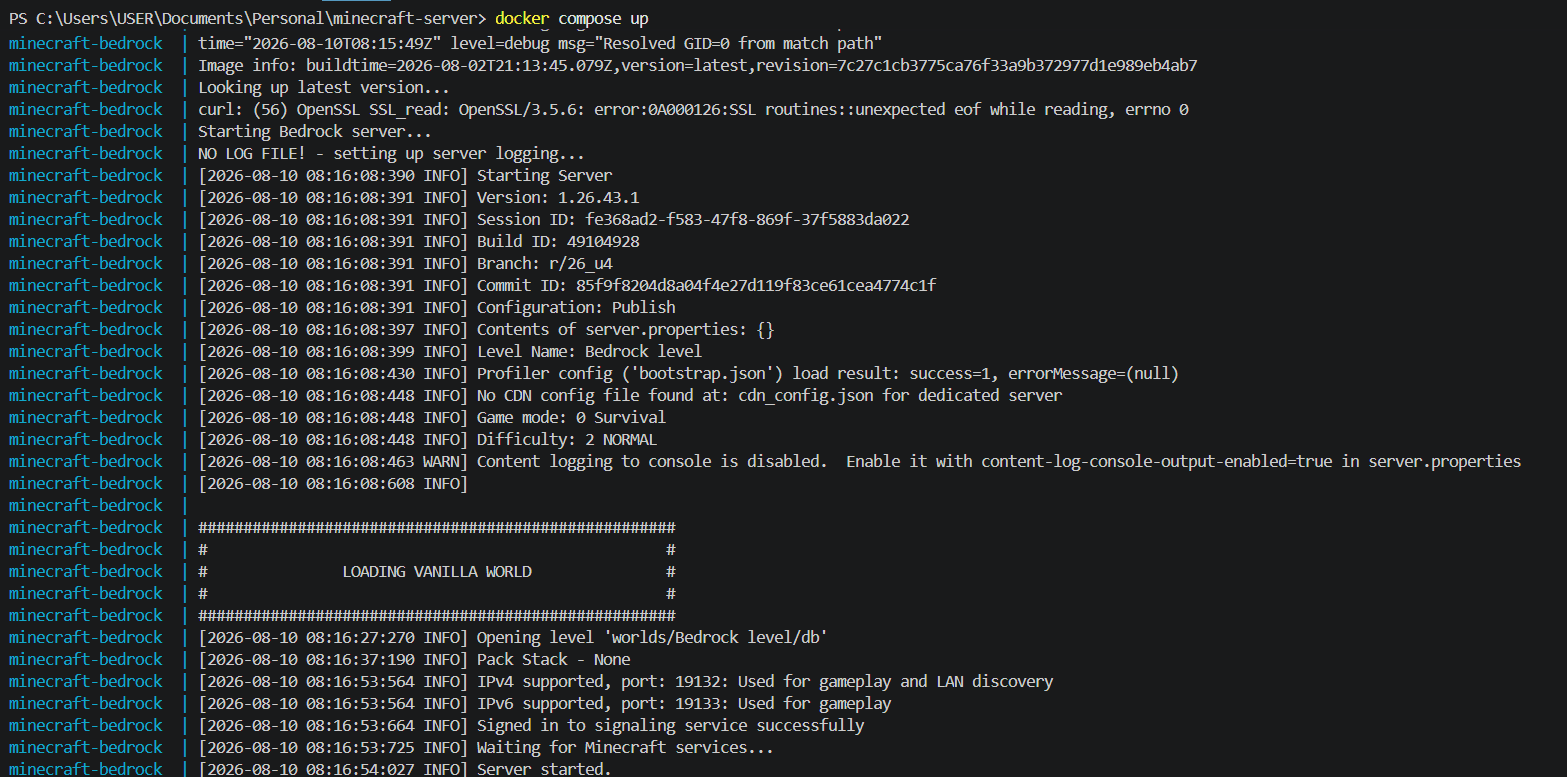
On the first run, the server will download the necessary files and start the server. You can check the logs until it says server started as shown on the image below:
- Open a cmd or powershell terminal and type the following command to get your local IP address
ipconfig
Look for soemthing like IPv4 Address. . . . . . : 192.168.1.100. It will be under: Wireless LAN adapter Wi-Fi you will see something like 192.168.100.4.
- On your Minecraft device, go to
Play>Servers>Add Serverand enter the following details:
- Server Name: My Server
- Server Address: [Your Local IP Address e.g.
192.168.1.100] - Port: 19132 (default port for Minecraft Bedrock)
-
You should be able to connect to the server and play with friends on the same network.
-
For offline play configuration set
online-mode=falseinsideminecraft-data/server.propertiesfile. This will allow you to play offline without needing an internet connection. (Note that an internet connection will still be needed to load minecraft to the servers menu)
Useful commands
docker exec minecraft-bedrock send-command gamerule showcoordinates true to set show coordinates
You can use AI to get other command variants
Managing the Server
I am in the process of creating a neat desktop app for you to manage the server. The app will allow you to start, stop, restart and view logs of the server. It will also allow you to change game settings without having to use the command line.